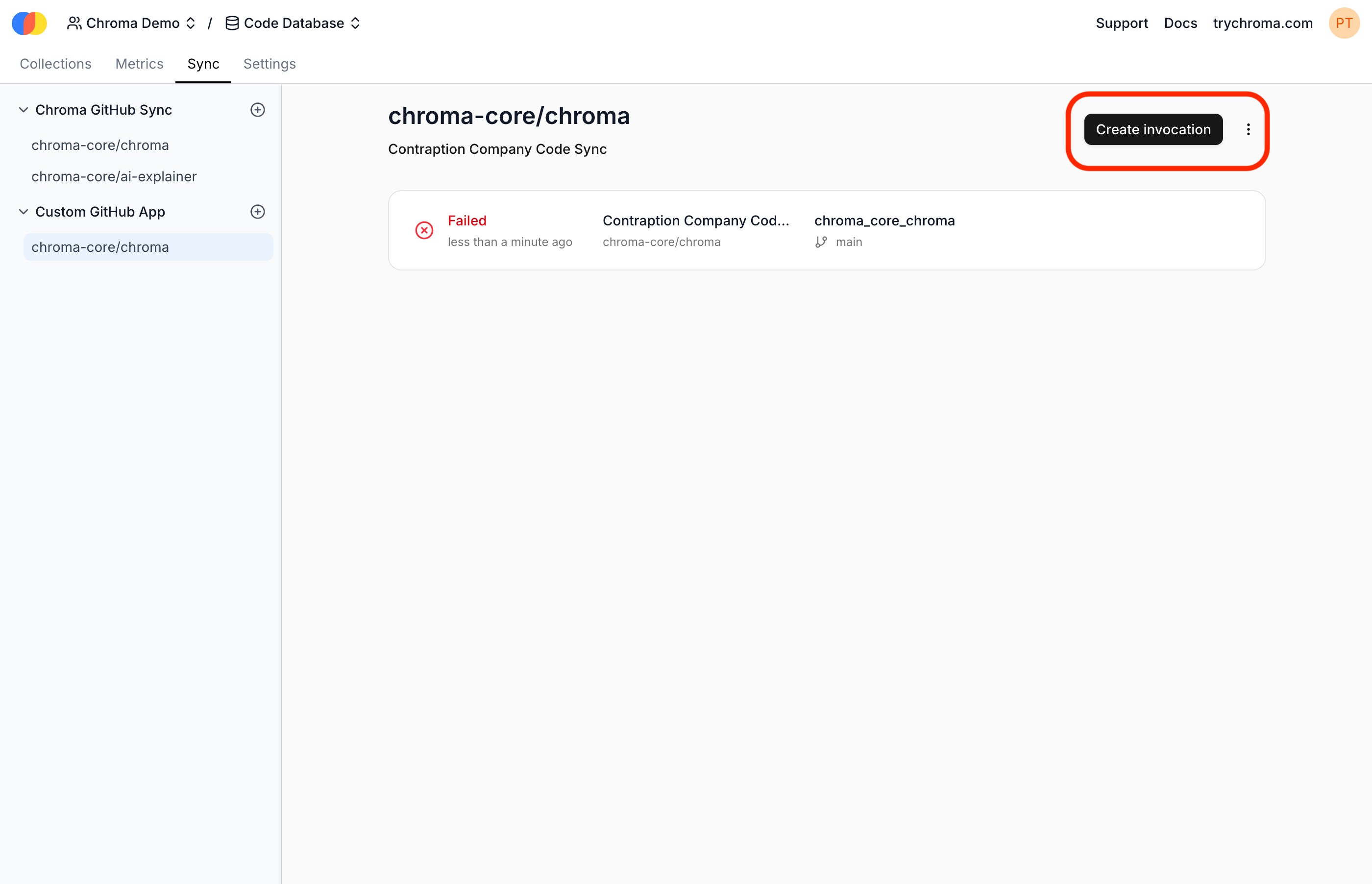
 Alternatively, you can invoke the Sync Function by sending an API request to the Sync Function's API:
```bash theme={null}
curl -X POST https://sync.trychroma.com/api/v1/sources/{source_id}/invocations \
-H "x-chroma-token:
Alternatively, you can invoke the Sync Function by sending an API request to the Sync Function's API:
```bash theme={null}
curl -X POST https://sync.trychroma.com/api/v1/sources/{source_id}/invocations \
-H "x-chroma-token: {title}
} {children}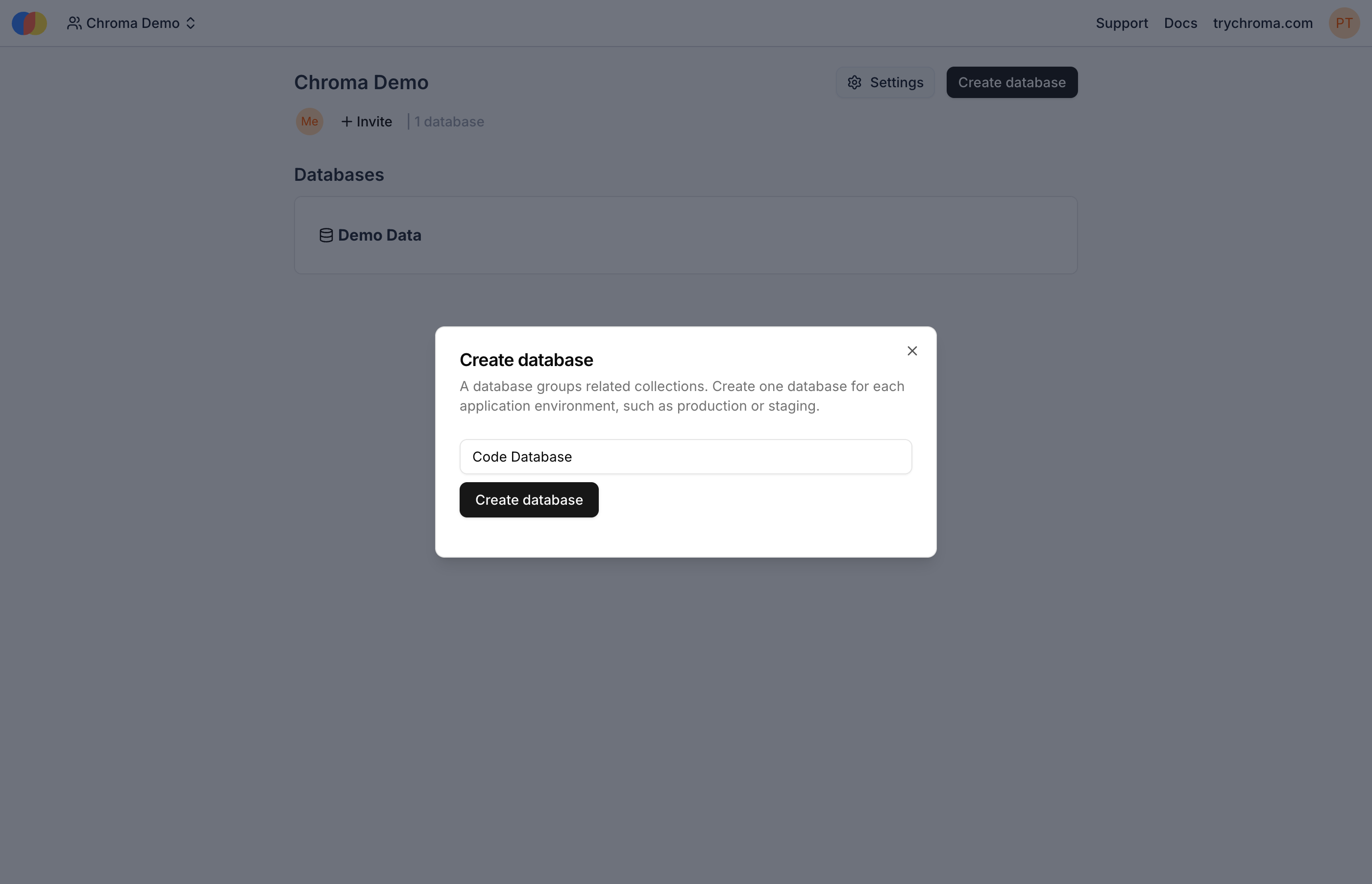 On the setup screen, select "Sync a GitHub repo":
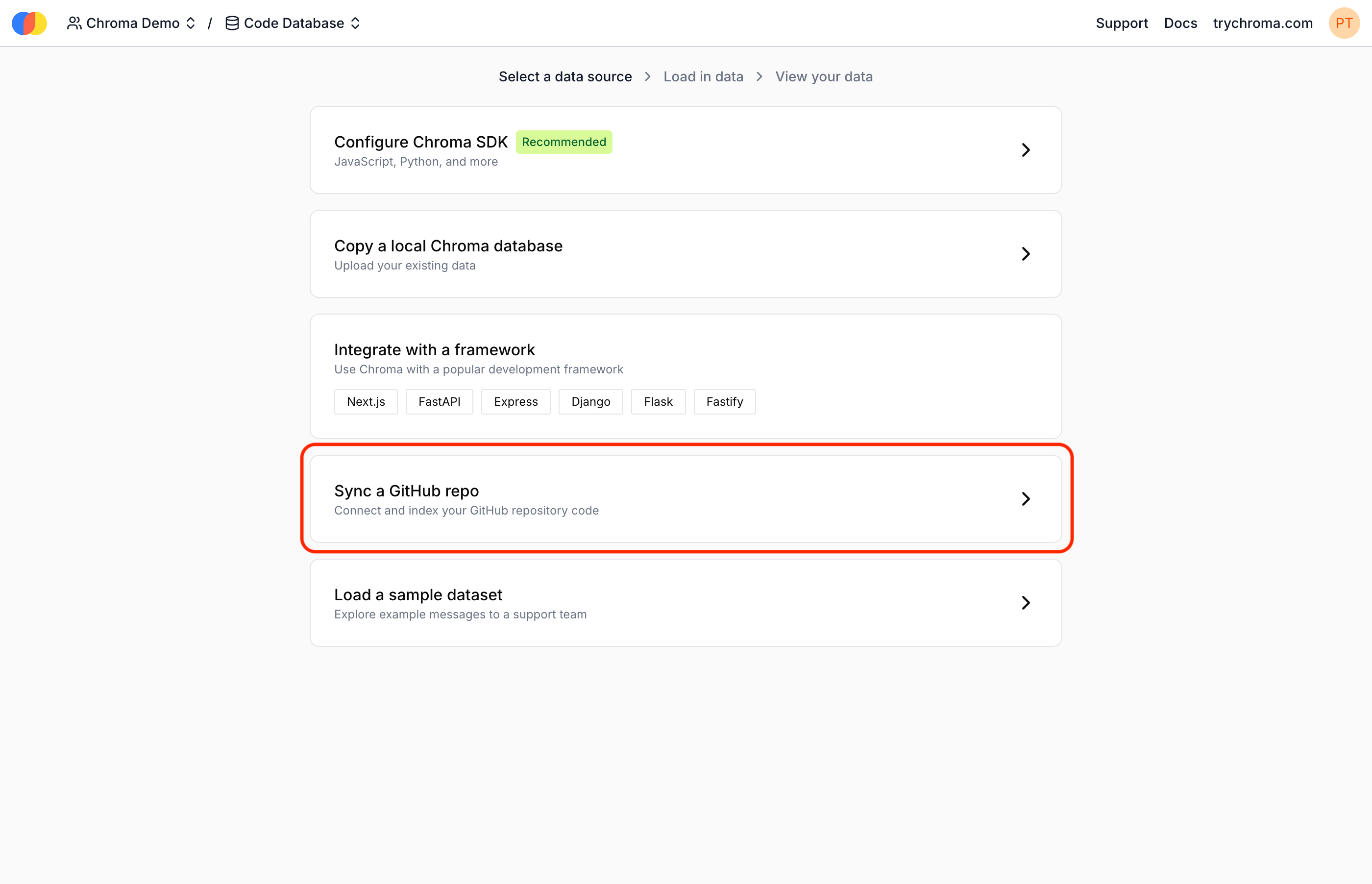 Install the Chroma GitHub App into your GitHub account or organization:
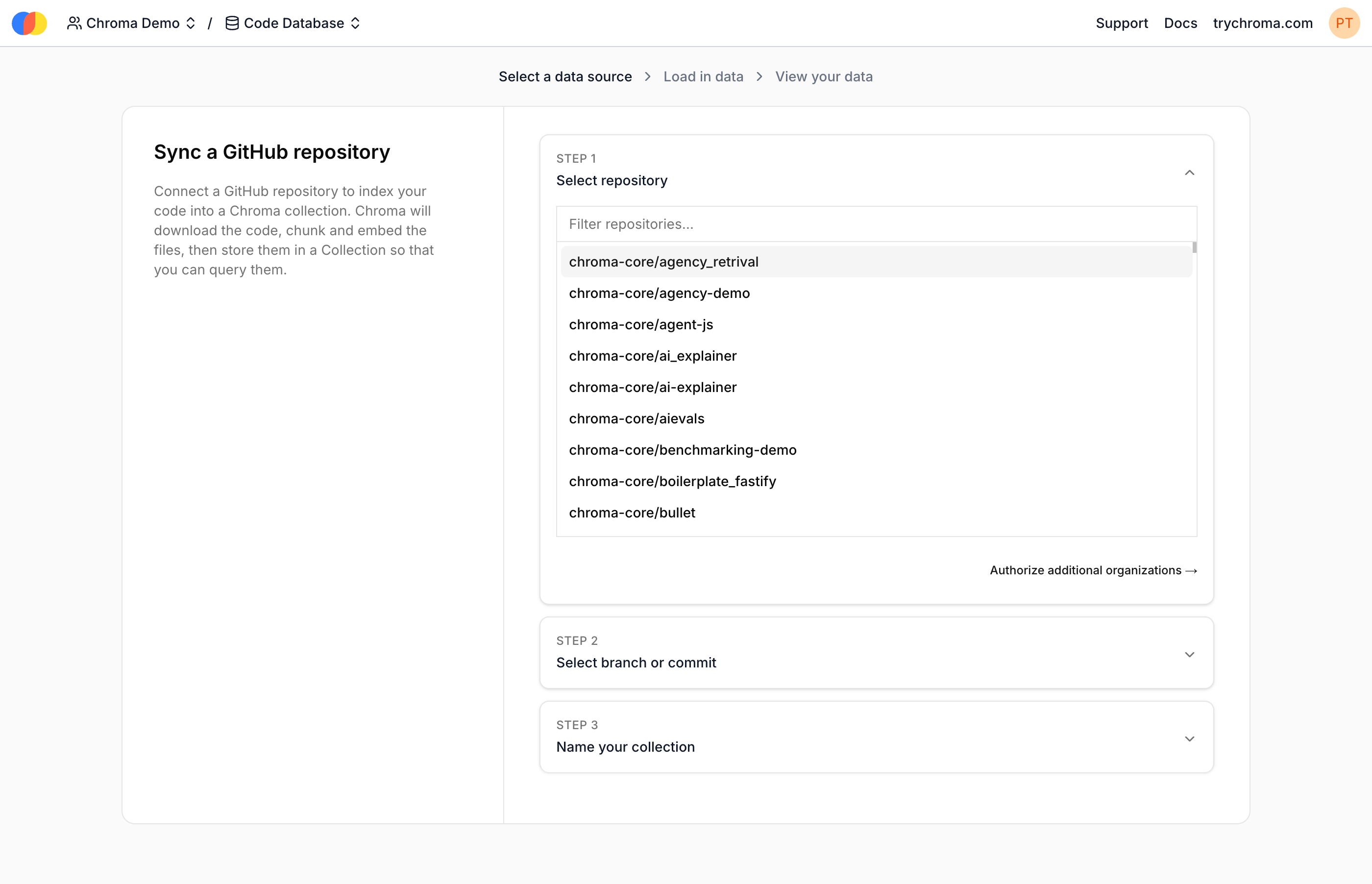
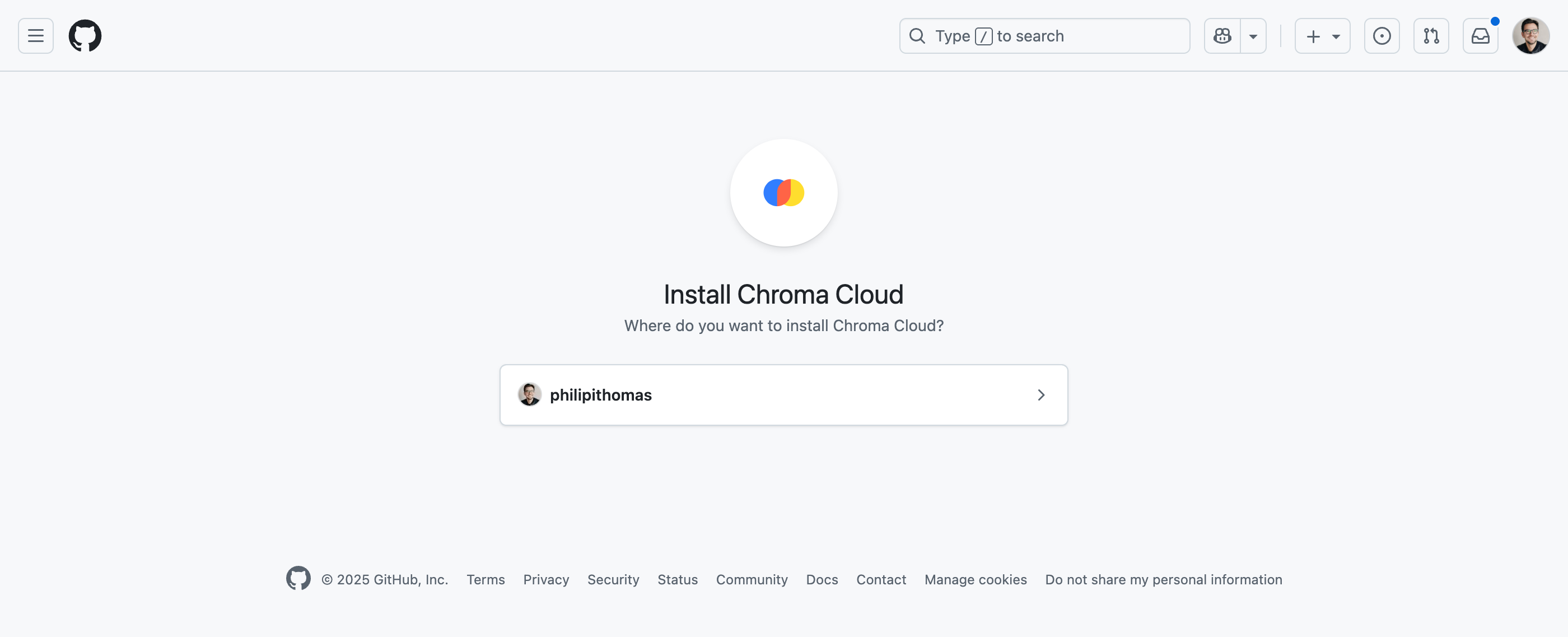 And follow the prompts to initiate sync. Choose the **repo** to sync code from, the **branch or commit hash** version of the code to index, and new **collection name** for the synced code. (The collection will be created by the syncing process, and must not exist yet.)
 3. **Existing database setup**
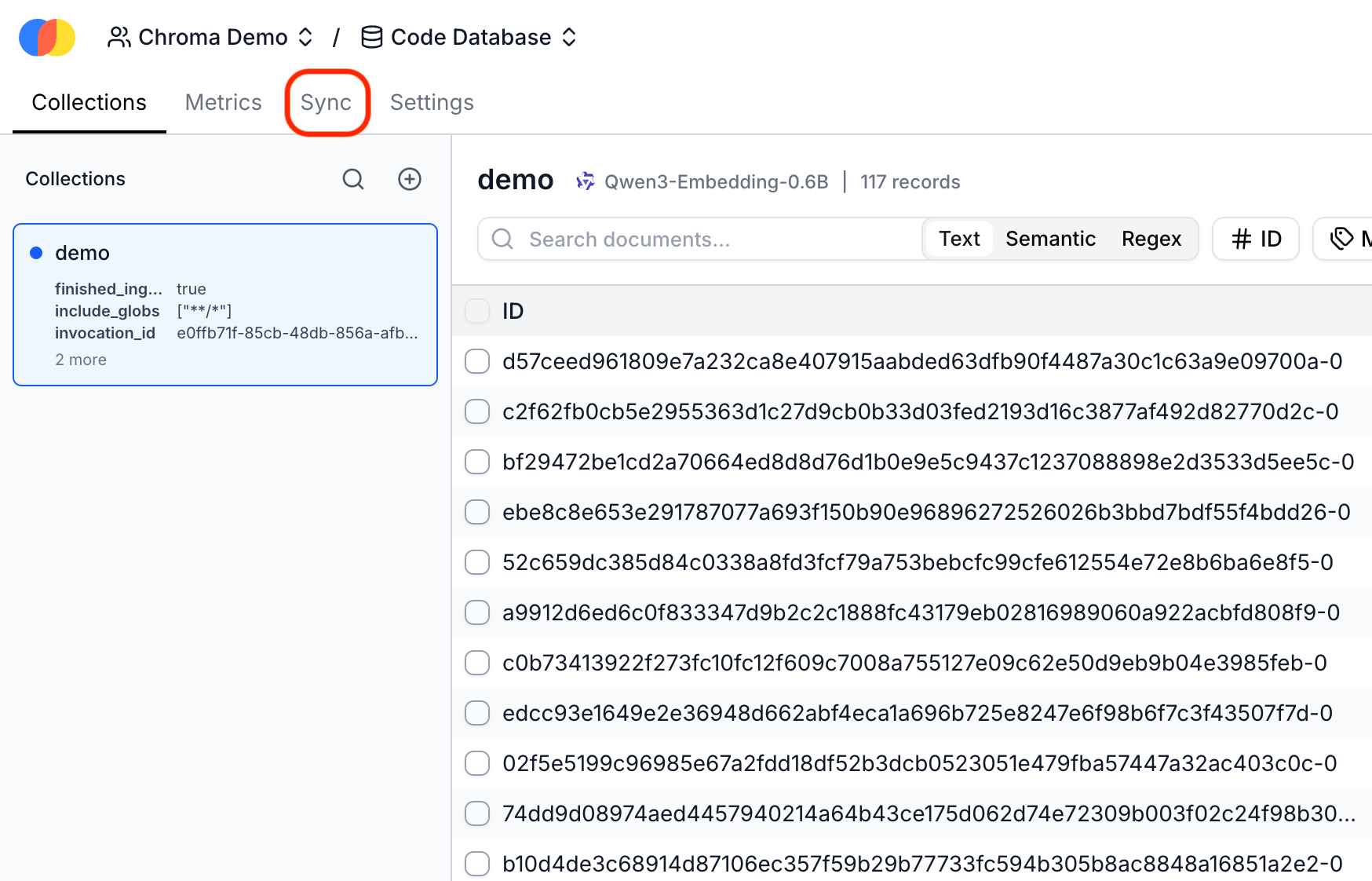
Open an existing database in Chroma Cloud, and select "Sync" from the menu:
3. **Existing database setup**
Open an existing database in Chroma Cloud, and select "Sync" from the menu:
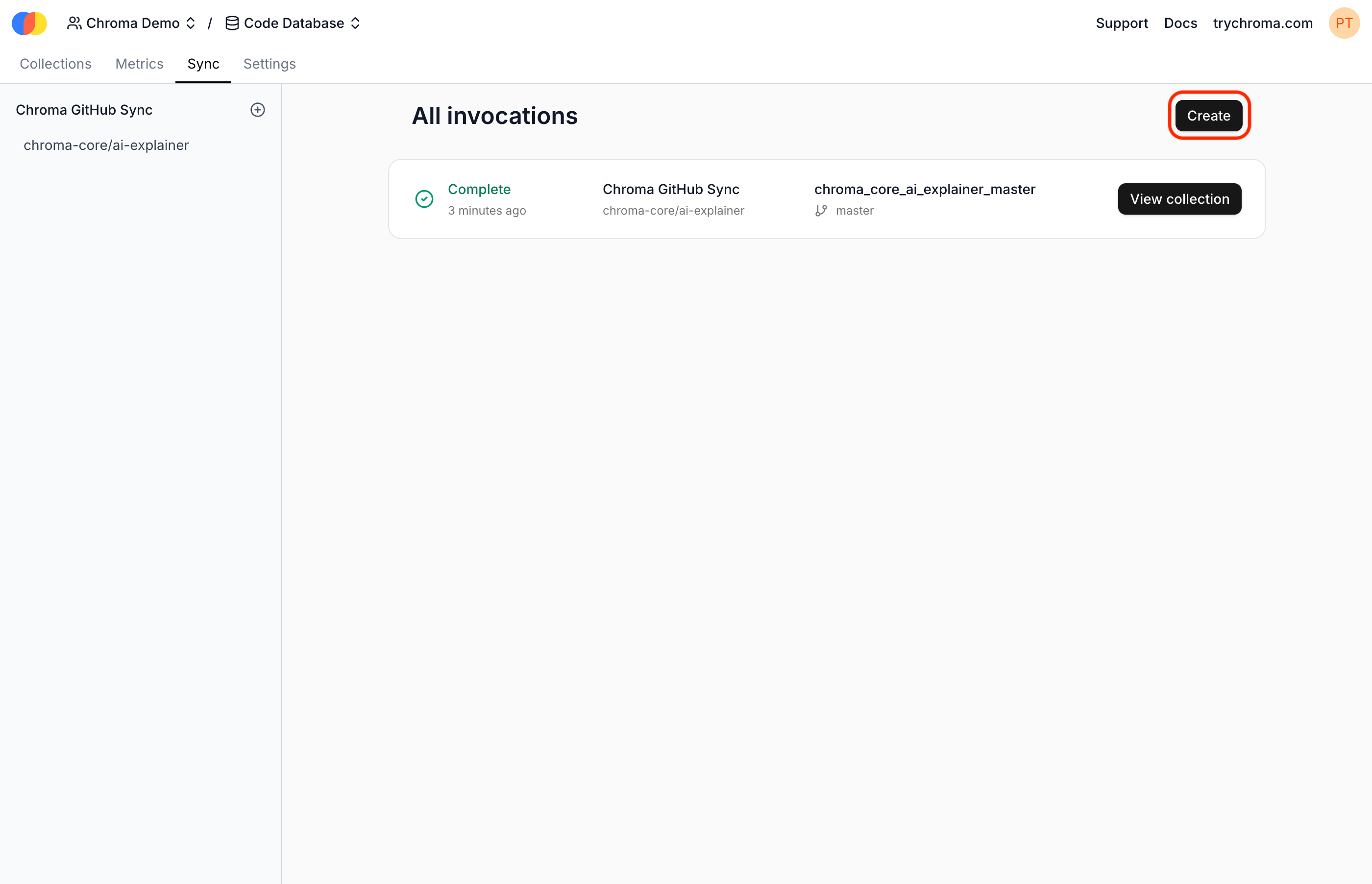
 On the Sync page, select "Create" to begin syncing code. If you have not already connected GitHub, you may be prompted to install the Chroma Cloud GitHub app again.
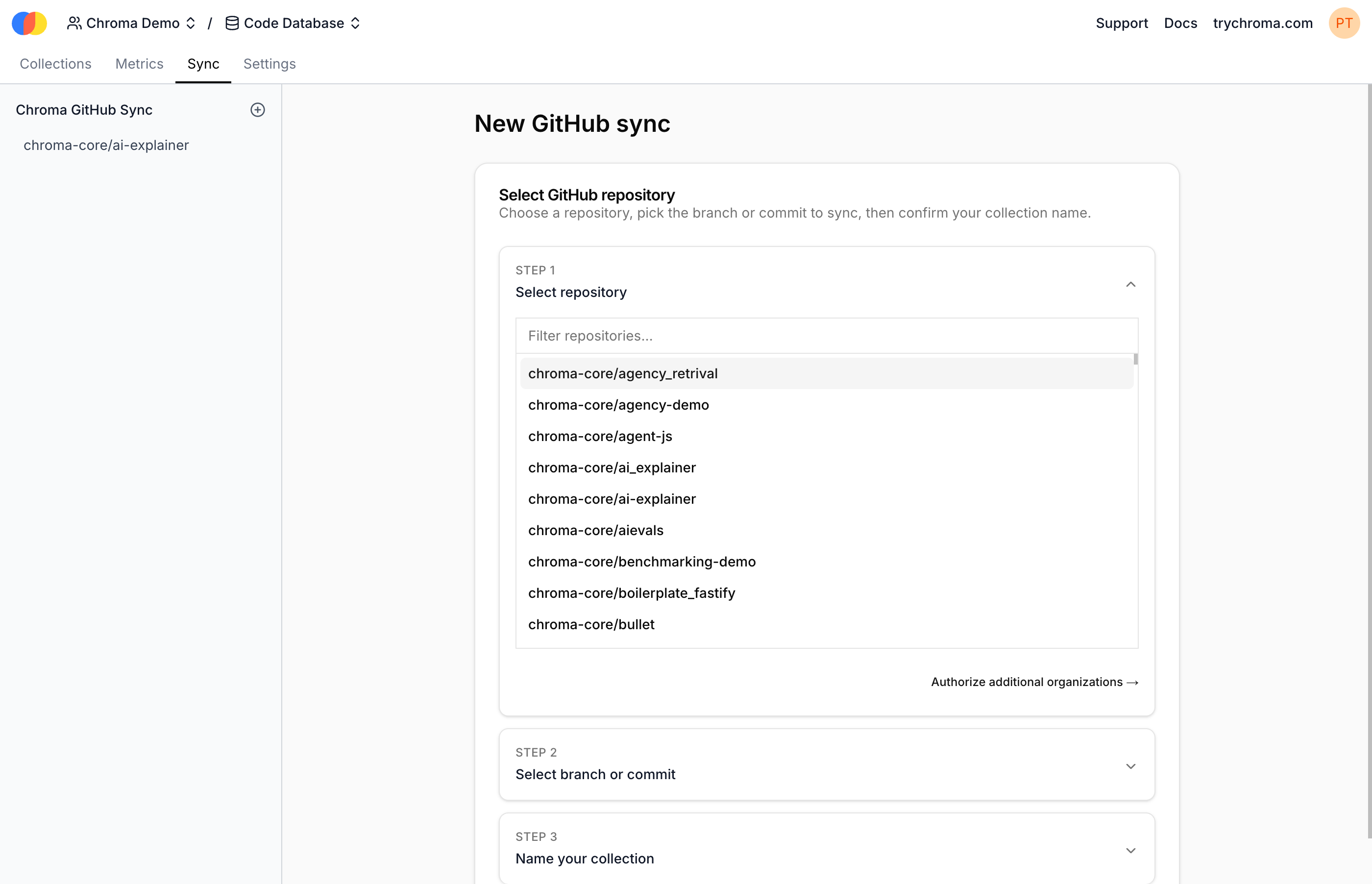
 Then, follow the prompts to initiate sync. Choose the **repo** to sync code from, the **branch or commit hash** version of the code to index, and a new **collection name** for the synced code. (The collection will be created by the syncing process, and must not exist yet.)
 4. **Viewing an Invocation**
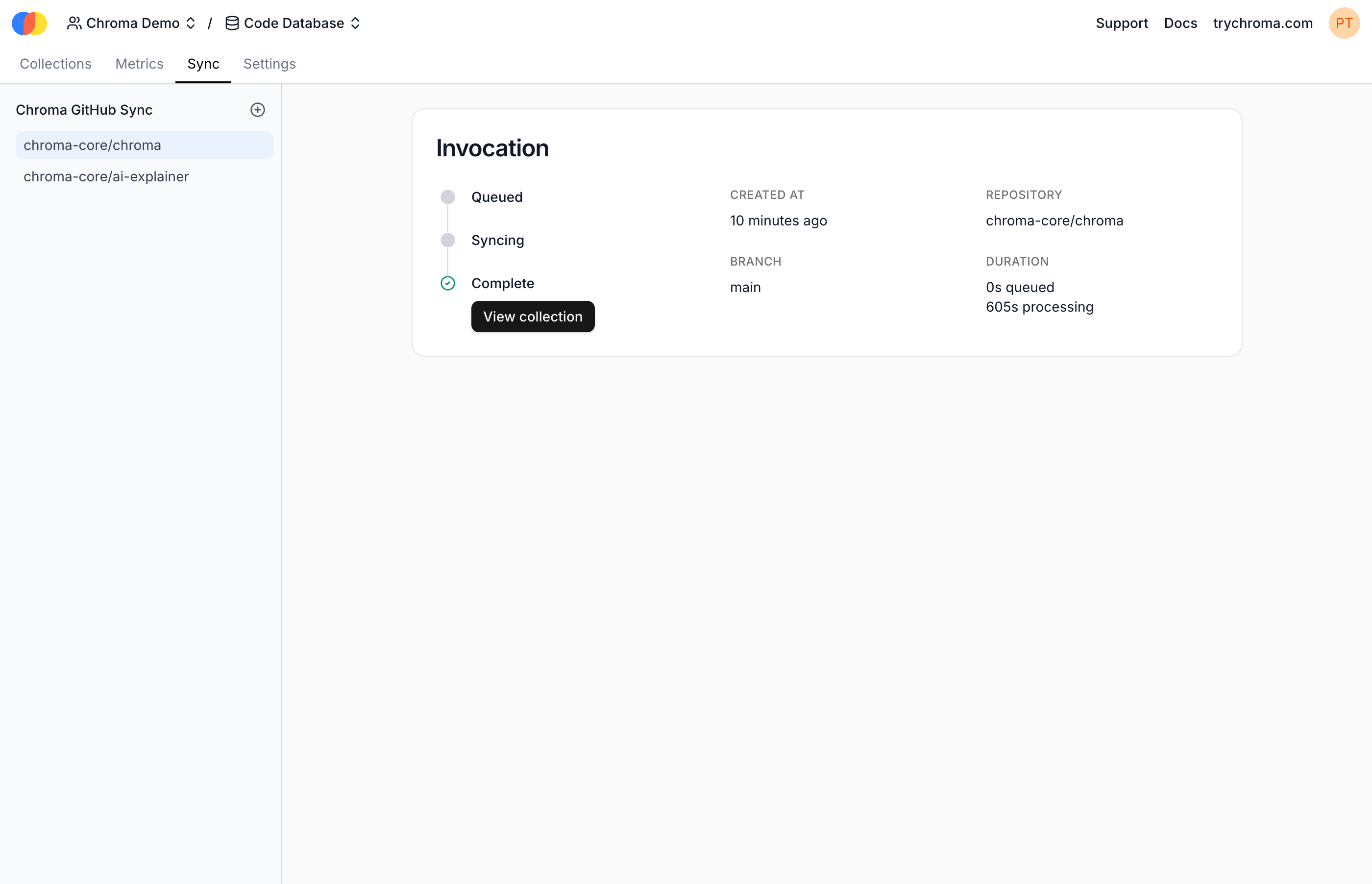
Each Sync create a new Invocation. When completed, select "View Collection" to see the new Chroma collection containing the synced code:
4. **Viewing an Invocation**
Each Sync create a new Invocation. When completed, select "View Collection" to see the new Chroma collection containing the synced code:
 ## Platform Sync

 2. **Setup**
If you do not already have a Chroma Cloud account, you will need to create one at [trychroma.com](https://www.trychroma.com). After creating an account, you can create a database by specifying a name:
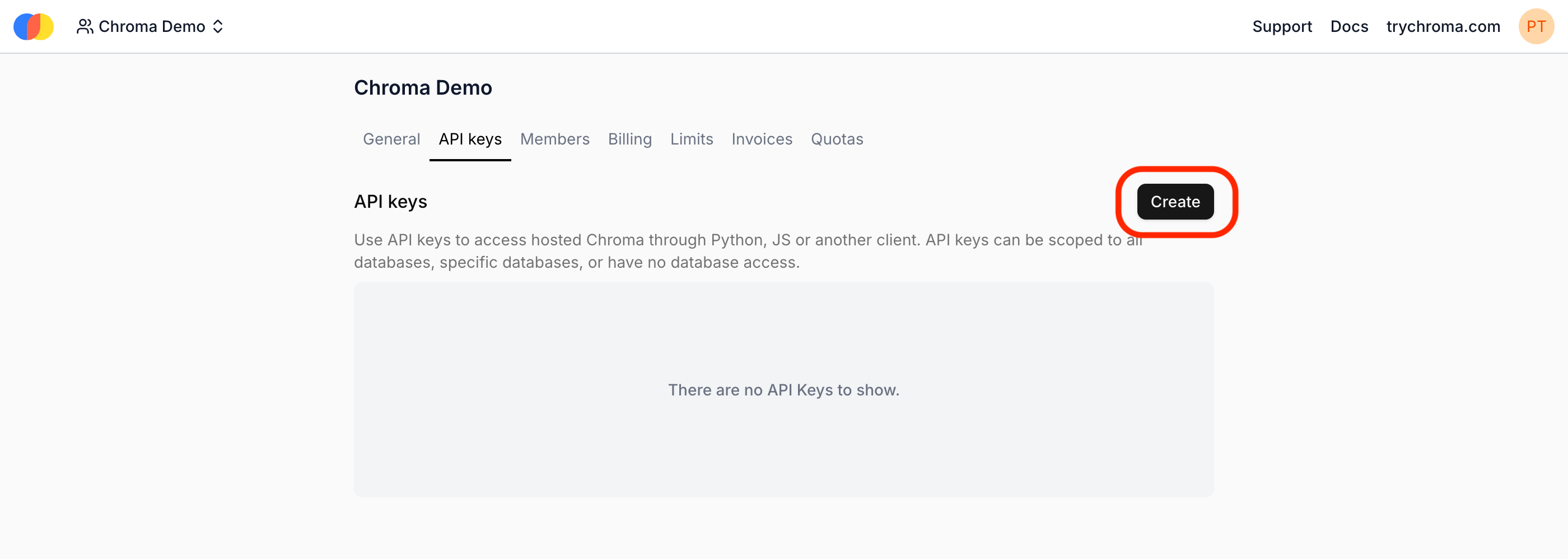
Once you have a database, you should create an API key to be able to access the Sync Function's API. You can choose to make this API key scoped to all databases on your account or only the one you just created:
2. **Setup**
If you do not already have a Chroma Cloud account, you will need to create one at [trychroma.com](https://www.trychroma.com). After creating an account, you can create a database by specifying a name:
Once you have a database, you should create an API key to be able to access the Sync Function's API. You can choose to make this API key scoped to all databases on your account or only the one you just created:
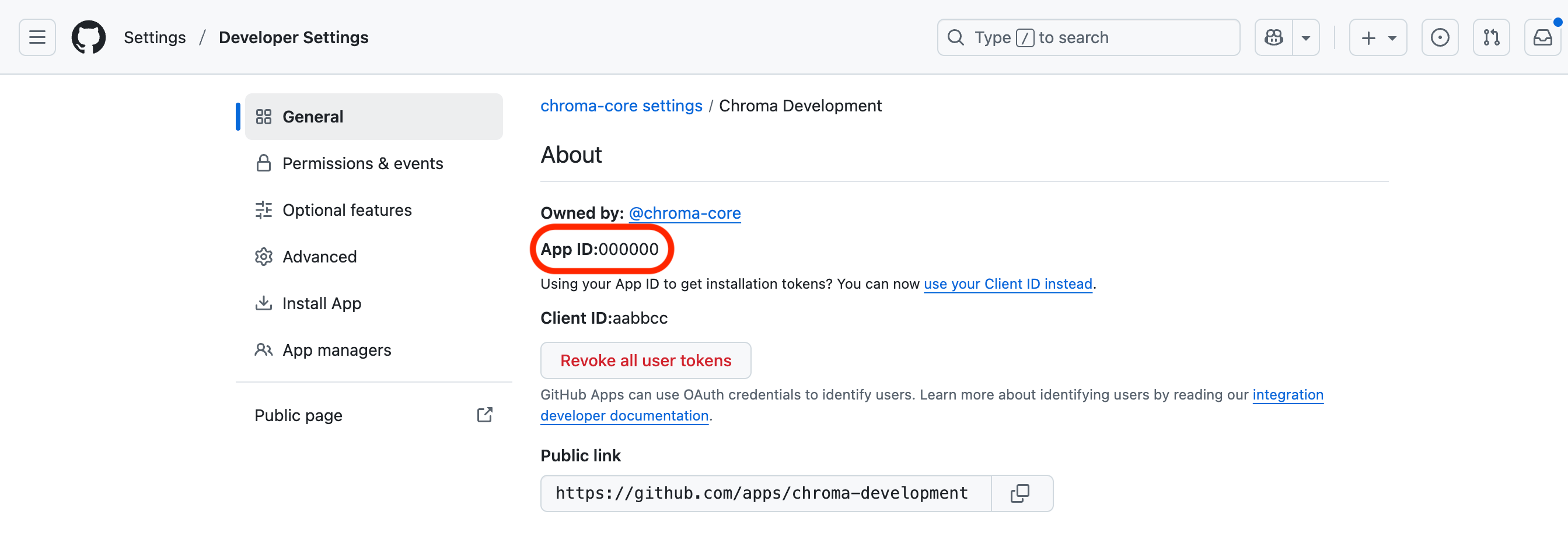
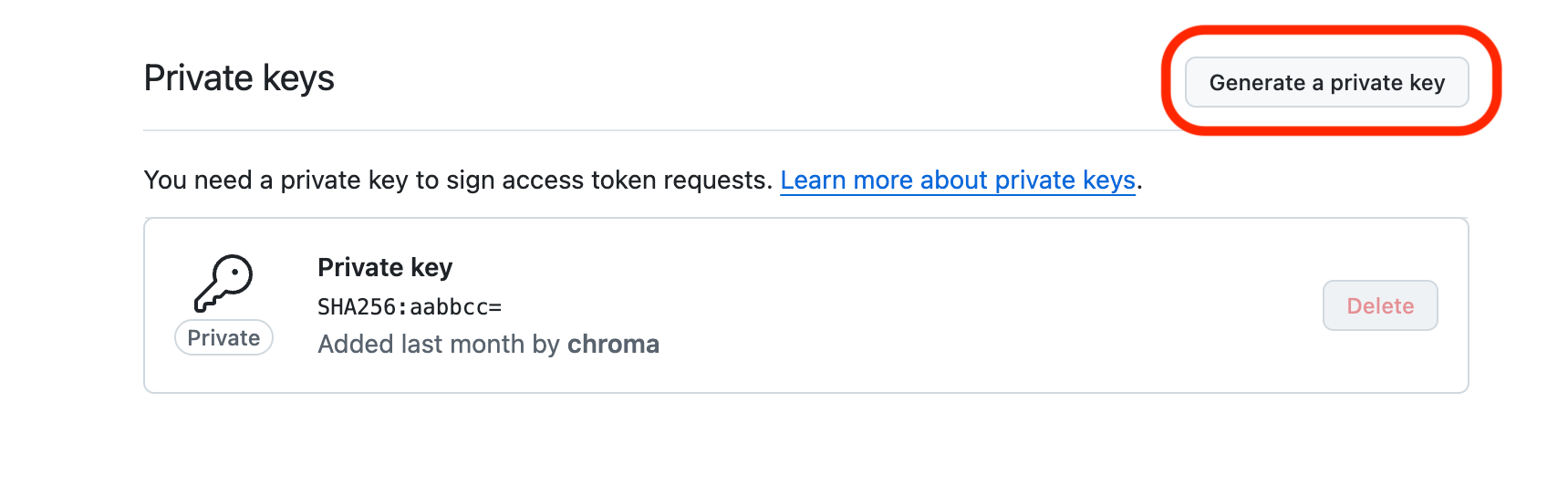
 The final setup step is to grant Chroma access to the repositories to which your GitHub App has access. You will need to retrieve the app's ID and private key from GitHub:
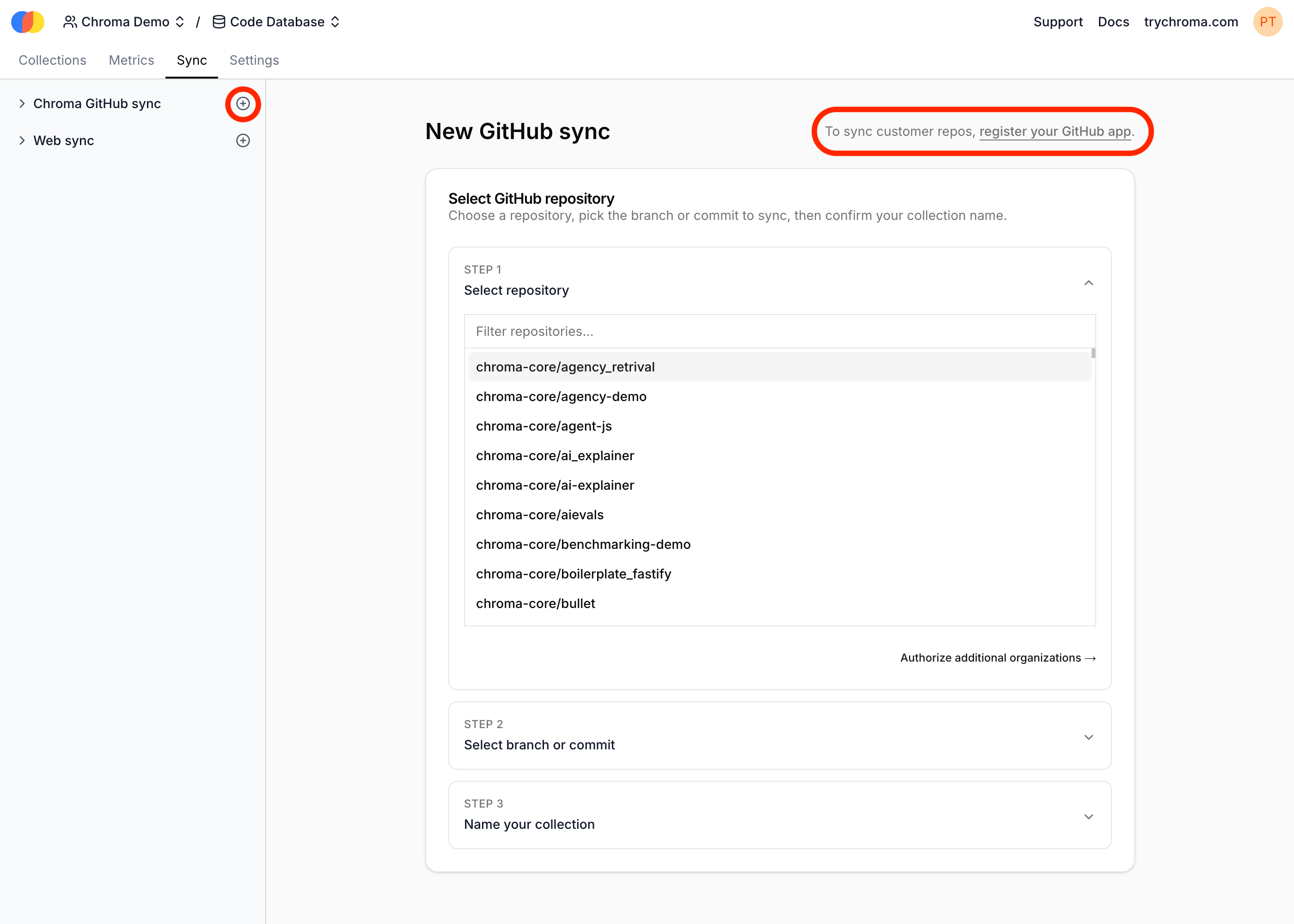
 With these credentials, navigate to the "Sync" -> "New GitHub sync" -> "Register your GitHub app" to configure your GitHub App with Chroma.
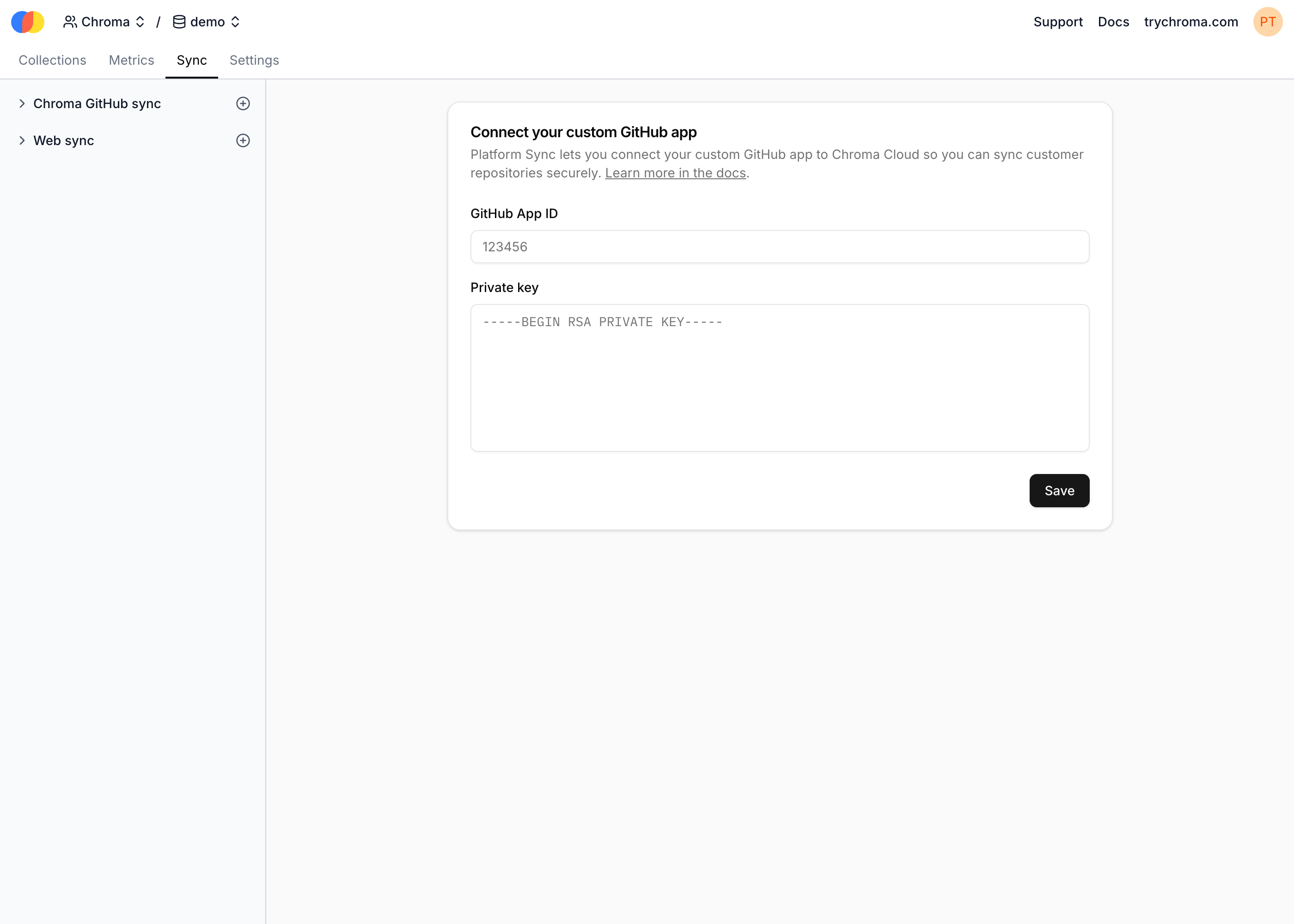
 On the "Connect your custom GitHub app" screen, submit the App ID and private key from GitHub:
 3. **Creating a source**
To create a source, you must send an API request to the Sync Function's API:
```bash theme={null}
curl -X POST https://sync.trychroma.com/api/v1/sources \
-H "x-chroma-token:
Alternatively, you can invoke the Sync Function by sending an API request to the Sync Function's API:
```bash theme={null}
curl -X POST https://sync.trychroma.com/api/v1/sources/{source_id}/invocations \
-H "x-chroma-token:
3. **Creating a source**
To create a source, you must send an API request to the Sync Function's API:
```bash theme={null}
curl -X POST https://sync.trychroma.com/api/v1/sources \
-H "x-chroma-token:
Alternatively, you can invoke the Sync Function by sending an API request to the Sync Function's API:
```bash theme={null}
curl -X POST https://sync.trychroma.com/api/v1/sources/{source_id}/invocations \
-H "x-chroma-token: