> ## Documentation Index
> Fetch the complete documentation index at: https://docs.trychroma.com/llms.txt
> Use this file to discover all available pages before exploring further.
# Browse Collections
> Inspect your Chroma collections with an in-terminal UI.
You can use the Chroma CLI to inspect your collections with an in-terminal UI. The CLI supports browsing collections from DBs on Chroma Cloud or a local Chroma server.
```bash theme={null}
chroma browse [collection_name] [--local]
```
### Arguments
* `collection_name` - The name of the collection you want to browse. This is a required argument.
* `db_name` - The name of the Chroma Cloud DB with the collection you want to browse. If not provided, the CLI will prompt you to select a DB from those available on your active [profile](./profile). For local Chroma, the CLI uses the `default_database`.
* `local` - Instructs the CLI to find your collection on a local Chroma server at `http://localhost:8000`. If your local Chroma server is available on a different hostname, use the `host` argument instead.
* `host` - The host of your local Chroma server. This argument conflicts with `path`.
* `path` - The path of your local Chroma data. If provided, the CLI will use the data path to start a local Chroma server at an available port for browsing. This argument conflicts with `host`.
* `theme` - The theme of your terminal (`light` or `dark`). Optimizes the UI colors for your terminal's theme. You only need to provide this argument once, and the CLI will persist it in `~/.chroma/config.json`.
```bash cloud theme={null}
chroma browse my-collection
```
```bash cloud with DB theme={null}
chroma browse my-collection --db my-db
```
```bash local default theme={null}
chroma browse my-local-collection --local
```
```bash local with host theme={null}
chroma browse my-local-collection --host http://localhost:8050
```
```bash local with path theme={null}
chroma browse my-local-collection --path ~/Developer/my-app/chroma
```
### The Collection Browser UI
#### Main View
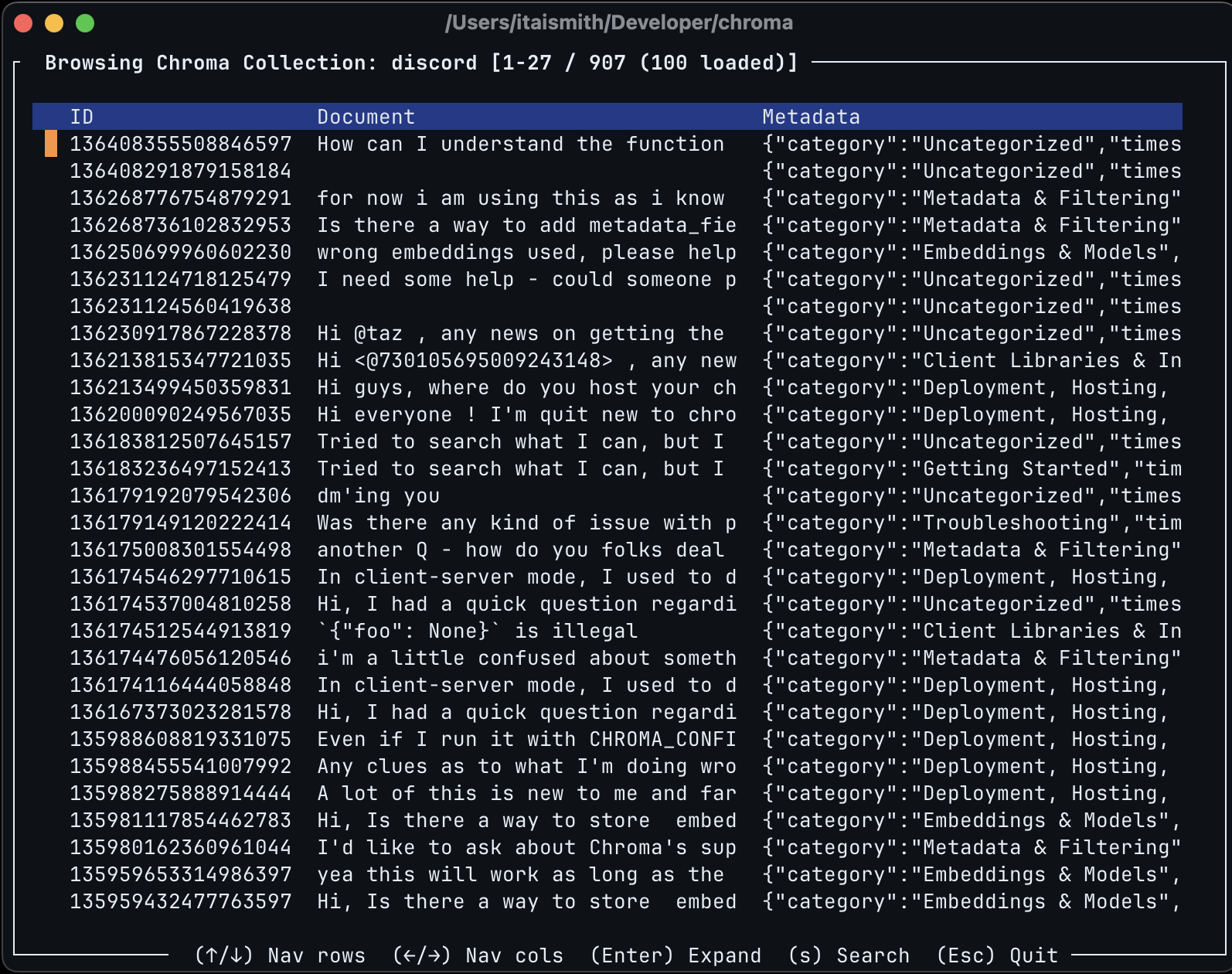
The main view of the Collection Browser shows you a tabular view of your data with record IDs, documents, and metadata. You can navigate the table using arrows, and expand each cell with `Return`. Only 100 records are loaded initially, and the next batch will load as you scroll down the table.
 #### Search
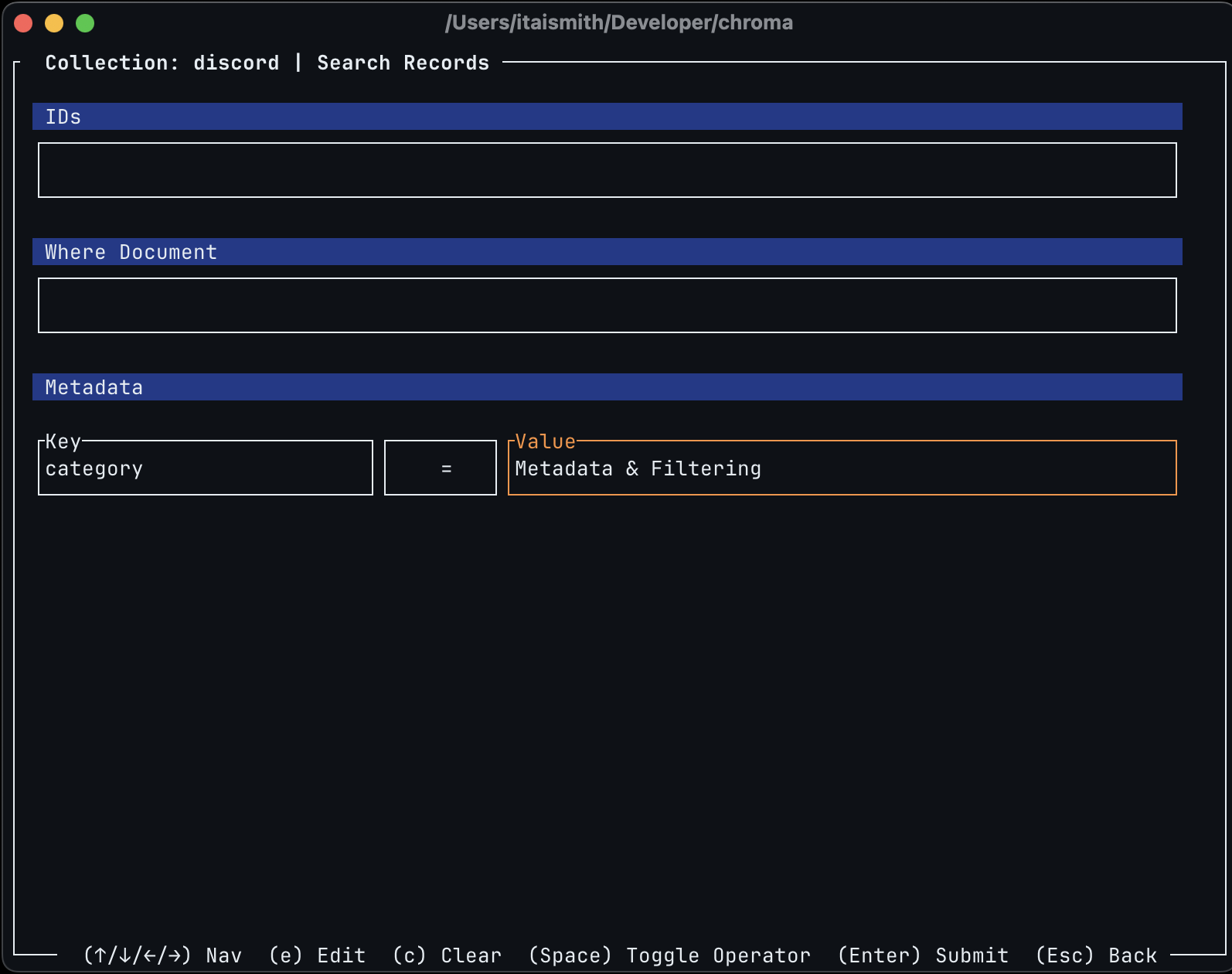
You can enter the query editor by hitting `s` on the main view. This form allows you to submit `.get()` queries on your collection. You can edit the form by hitting `e` to enter edit mode, use `space` to toggle the metadata operator, and `Esc` to quit editing mode. To submit a query use `Return`.
The query editor persists your edits after you submit. You can clear it by hitting `c`. When viewing the results you can hit `s` to get back to the query editor, or `Esc` to get back to the main view.
#### Search
You can enter the query editor by hitting `s` on the main view. This form allows you to submit `.get()` queries on your collection. You can edit the form by hitting `e` to enter edit mode, use `space` to toggle the metadata operator, and `Esc` to quit editing mode. To submit a query use `Return`.
The query editor persists your edits after you submit. You can clear it by hitting `c`. When viewing the results you can hit `s` to get back to the query editor, or `Esc` to get back to the main view.